Uncategorised

Online Forms

Four times a year, CPER coordinates a Journal Club meeting for all paramedics across the region. This is run by paramedics, for paramedics and is intended to create an opportunity to share and critically discuss published literature relevant to practice. All reference material will be posted here. Please join us!
Multi-factor Authentication
Why is multi-factor authentication necessary?
Digital security is critical in today's world because both businesses and users store sensitive information online. Everyone interacts with applications, services, and data that are stored on the internet using online accounts. A breach, or misuse, of this online information could have serious real-world consequences, such as financial theft, business disruption, and loss of privacy.
While passwords protect digital assets, they are simply not enough. Expert cybercriminals try to actively find passwords. By discovering one password, access can potentially be gained to multiple accounts for which you might have reused the password. Multi-factor authentication acts as an additional layer of security to prevent unauthorized users from accessing these accounts, even when the password has been stolen. Businesses use multi-factor authentication to validate user identities and provide quick and convenient access to authorized users.

Important Notes!
- PRINT/SAVE your back up codes.
- Please review the points below if you are getting a new phone.
Option 1: Verification Code
This MFA method uses an Authenticator app on your phone to generate one time 6 digit passwords for second factor authentication.
IMPORTANT
This MFA option is supported by all browsers.
Step 1
Log in to your Joomla account then from the Home menu select Edit Profile under Login.
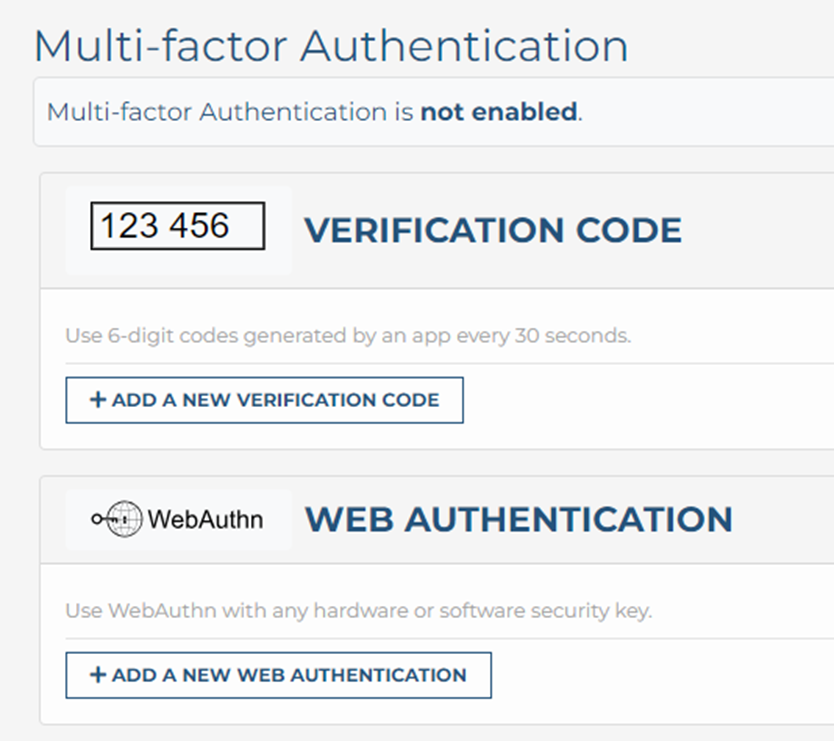
Scroll down until you see the section for Multi-factor Authentication.
Here you will see two options for MFA:
- Verification Code
- Web Authentication.
We recommend configuring both so you have a backup method to login.
Step 2
We will setup the Verification Code first. This method requires an Authentication App installed on your phone. There are browser apps that will work; however you will need to have the browser app to log in to the site on a portable device so they are NOT recommeneded.
-

Microsoft Authenticator
This is required by the TOH for multi-factor authentication, please use this app if you are employed by the RPPEO (TOH).
-

Google Authenticator
Step 3
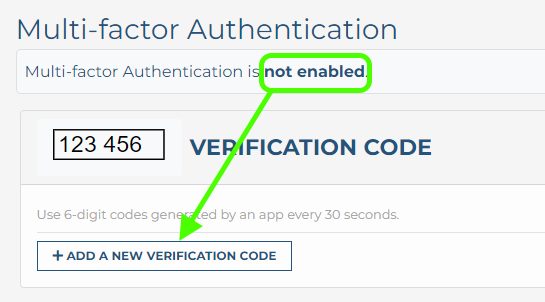
From the MFA options listed under your profile verify that Verification by email is not enabled, then click add new verification code.
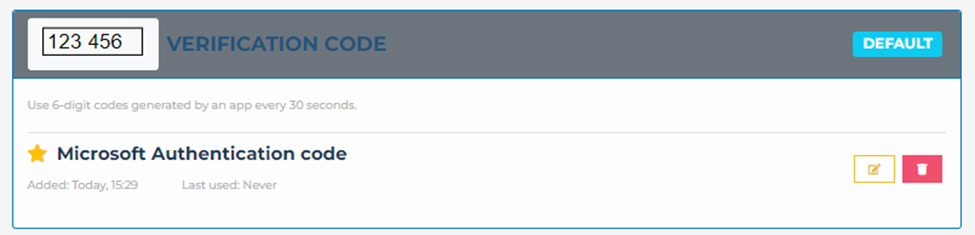
- Enter a Title for this MFA method, I’ve named it Microsoft Authentication code so it will be easier to identify when I login.
- You can make this the default method, this can be changed at any time by editing your profile.
- From the Authenticator app add a new account and select the option to scan a QR code. When the camera appears on the app, scan the QR code on your screen
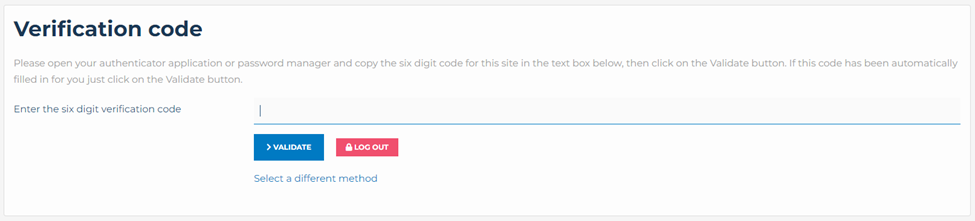
- Once the app has scanned the QR code and set up the account, select the new entry in your authenticator to see the one time six digit password. Enter the password where shown in the image (left) and click Save.
- You should now see the new Authentication method in your Profile. You can edit and delete this MFA method from here as well.
Step 4
The Verification Code will now be configured and enabled for your account.
When you login you will now be presented with a screen asking for your Verification Code. Enter the code from your phone to complete the login.
Option 2: Web Authentication
This MFA method uses an Authenticator app on your phone to generate one time 6 digit passwords for second factor authentication.
IMPORTANT
This MFA option is supported by Chrome and Edge, it is NOT supported by Firefox.

Step 1
This method uses your phone’s biometrics to login using your fingerprint.
Return to you profile edit page and scroll down to the MFA section.
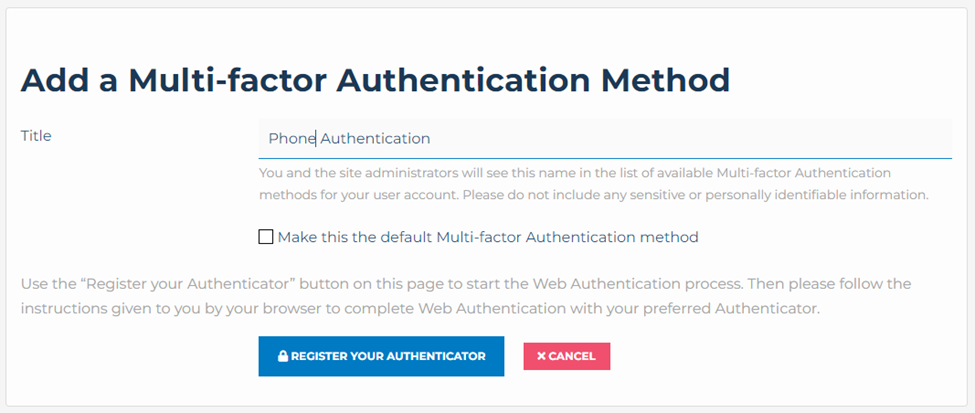
Click Add a new auth method
Step 2
On this page, please update the Title to something that will make it easy to identify when needed.
Click Register your Authenticator.
Step 3
You will now be presented with 3 pop ups.
-
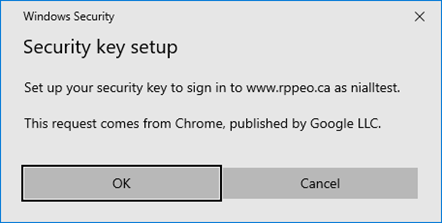
Click OK
You will see this popup with Chrome and Edge, click okay. This MFA method is not supported by Firefox.
-
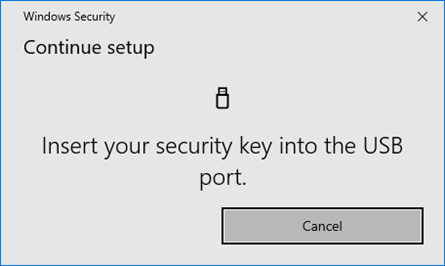
Click Cancel
The browser will ask for a USB based token by default, click cancel.
-
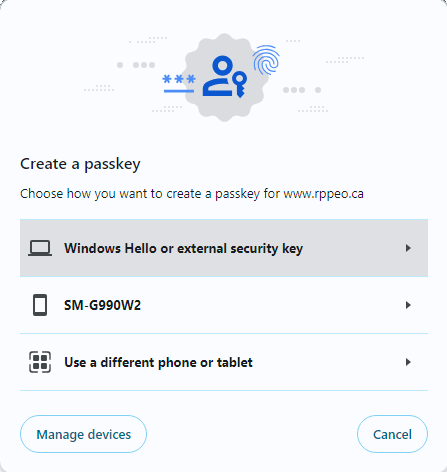
Select your Phone
From the popup window Create a passkey, you phone should be listed as an option, in the image above it is SM-G99W2, you phone's ID will be different.
Make sure your phone is unlocked. Now when you select your phone from the list in the popup you will see a message on you phone to complete the process using your finger print. Once complete you will be able to select this login method.
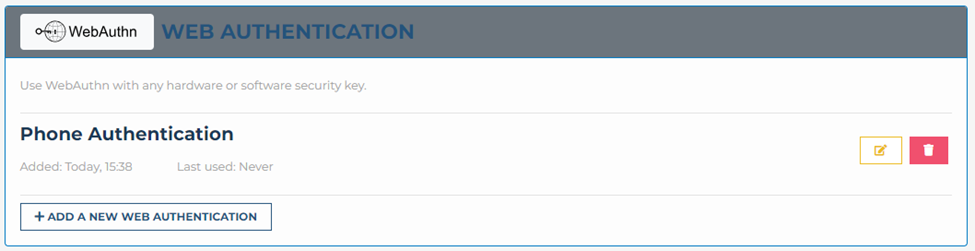
Web Authentication is now configured
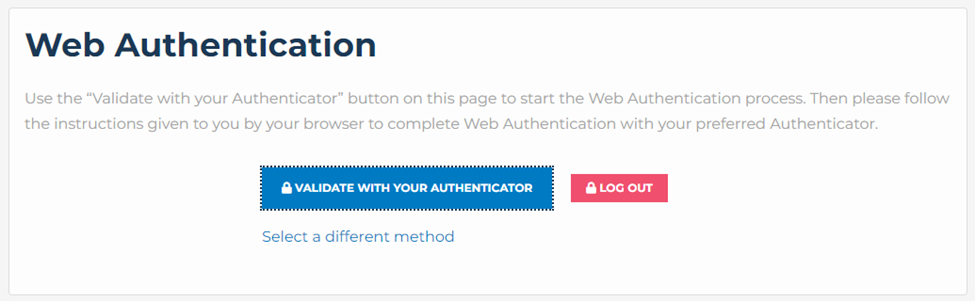
Login using Web Authentication
When you login and Web Authentication is your default, you will now see a page asking you to Validate with your Authenticator. If you are using a laptop or PC, open your phone to complete the MFA Authorization by providing your finger print. If you are browsing with your phone you will be asked for your finger print once you click Validate with your authenticator.
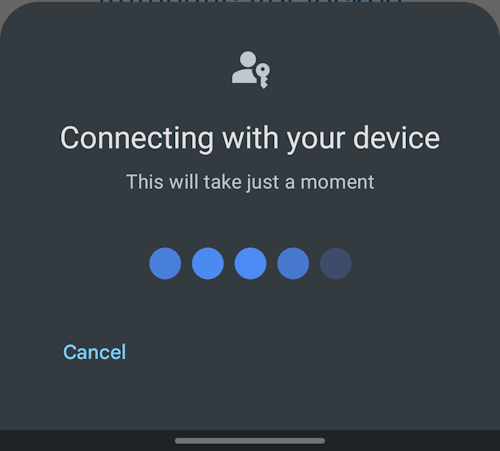
Complete login on your phone
Have your phone ready, when you click the Validate with your Authenticator, your phone will begin the validation process as shown to the right.
Once connected to your phone you will be asked for your finger print to continue.
Changing the default method for Authorization
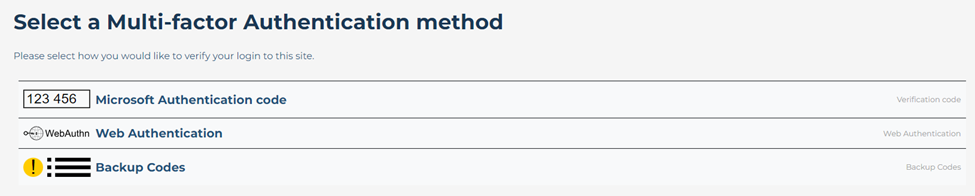
To change the default method for logging in you can open Edit Profile, then click on the method you would like to be the default. When it's settings page opens you will see a checkbox to set as default. Check the box and save your profile.
MFA also offers Backup codes as an option should you have issues with the standard MFA options. These codes must be saved somewhere secure.
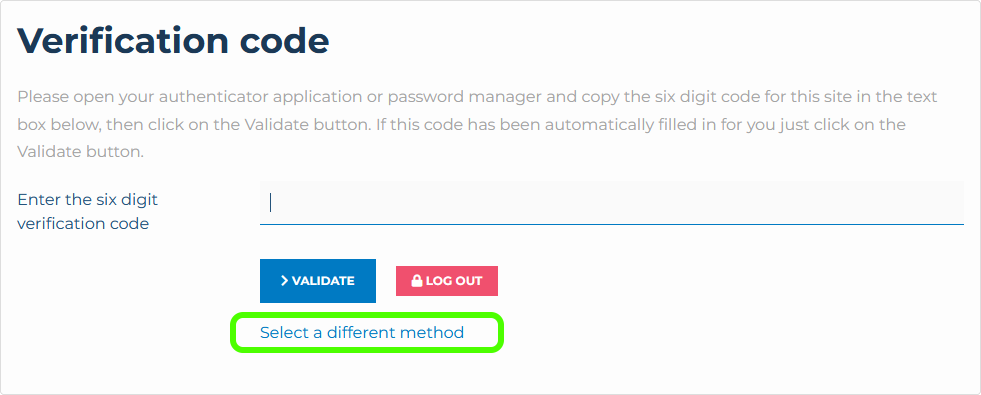
Select MFA Method during logon
You may also select a different method while logging in. Simply click the Select a different Method link on the MFA Login page.
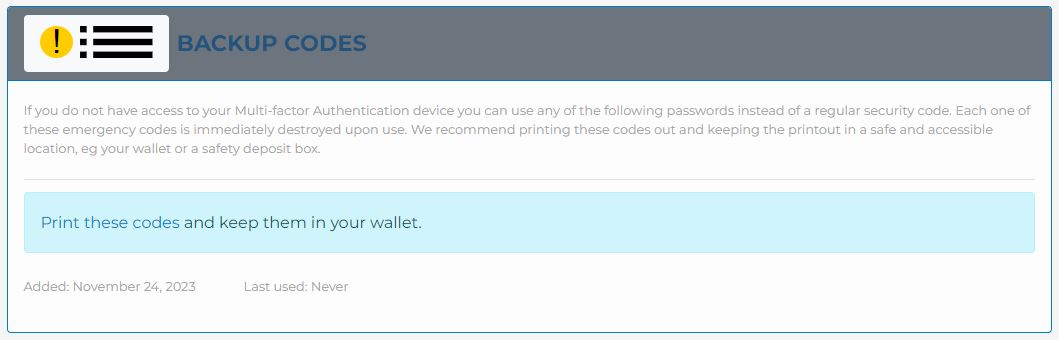
Backup Authorization Codes
The site will generate a set of backup codes that can be stored SECURELY and used should the other multifactor options fail.
Important Notes:
- If you are going to be moving to a new phone, FIRST get your backup codes.
- Microsoft Authenticator has an option to back up your account credientials, you can then restore to your new device. Info from Microsoft
- The Google Authenticator does not require extra steps to backup your credientials, this information will be transfered to your new device once you have setup your Google account on the new device.
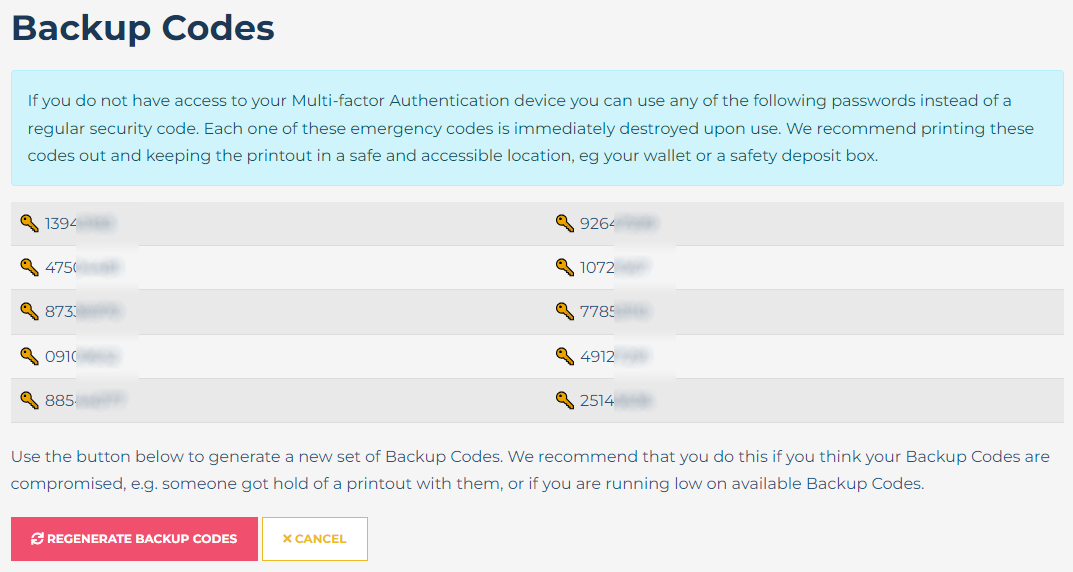
There are 10 backup codes initially, you can regenerate the codes as required.
To use a backup code click the link under the Validate button to select a different authentication method, select Backup code.
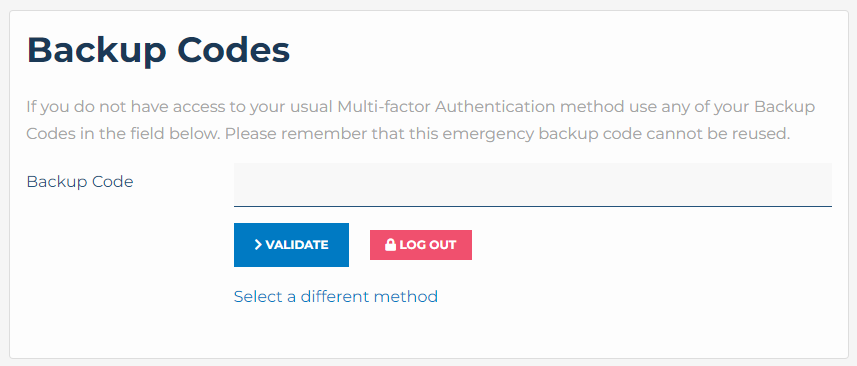
Enter one of the codes you have printed, this code will be destroyed once used and can not be used again.

WELCOME TO YOUR 2026 CME PROGRAM AND CATALOGUE
WHAT IS CME?
Continuing Medical Education (CME) allows Paramedics to maintain and enhance knowledge,
skills and judgements, and to learn about different clinical situations that may occur less
frequently in the field. CPER strives to provide essential courses and new learning opportunities
for Paramedics through our CME programming. In order for CME credits to be allocated, the
educational activity must enhance the clinical practice of Paramedicine at the certification level
of the Paramedic and must be approved by CPER.
Ideally, Paramedics will take the initiative to seek out self-directed CME opportunities for their
own professional growth and development. However, the CPER CME program provides a variety
of options for Paramedics to acquire all required CME credits prior to the CME deadline.
Primary Care Paramedics are also encouraged to engage in as many CME opportunities as
possible to support continued professional growth and improvement of knowledge, skills and
judgement.
WHAT CME CREDITS AND/OR ONLINE MODULES DO I NEED TO COMPLETE TO MAINTAIN
CERTIFICATION?
The requirements for CME credit reflects the provincial mandate of 8 credits annually for PCPs
and 24 credits annually for ACPs. As always, 8 of these credits are accumulated when
Paramedics attend an education session in the form of an Annual Practice Review (APR) in
each certification year. This APR is a mandatory session for all CPER Paramedics.
In addition to successful completion of the 8 credit APR CME, ACPs are required to obtain a
minimum of an additional 16 CME credits during each certification year.
Paramedics must complete mandatory online modules and CME requirements AND provide
proof of completion when required to CPER by Thursday January 21, 2027 at 1600hrs. It is the
responsibility of the Paramedic to ensure that the deadline for completion of all requirements
is met, in order to maintain certification.
Please keep in mind that the Ministry of Health, Certification Standard, specifically 10 patient
contacts, as per the ALS PCS Section 6, is a completely separate stream that may require the
Paramedic to complete additional education and training, in order to maintain certification.
Paramedics who are required to complete additional educational components relating to this
will receive separate communication from CPER.
WHAT IS THE CME DEADLINE FOR 2026?
The deadline to acquire CME credits is January 21, 2027
WHAT HAPPENS IF I DO NOT COMPLETE MY MAINTENANCE OF CERTIFICATION (MOC)
REQUIREMENTS?
Paramedics who do not complete the MOC requirement prescribed by CPER are not eligible for
continued annual certification and are subject to administrative deactivation. If a Paramedic is
administratively deactivated due to not meeting MOC requirements, the Paramedic will remain
deactivated until such time that all requirements are met. Any Paramedic who has been
administratively deactivated more than once over the past 5 years (including the current 2026
year) may be required to complete a remediation plan prior to reactivation. This remediation
plan will be at the discretion of the CPER Education Department on behalf of CPER Medical
Council.
CAN I CARRY OVER CME CREDIT FROM ONE YEAR TO THE NEXT?
Any CME credit earned in January 2026 are eligible for carryover into 2026, as long as 2025 CME credit requirements are met by January 22, 2026.
CAN I COMPLETE CME NOT IN THE CPER CME CATALOGUE?
CME credit pre-approval should be obtained from CPER prior to attending the desired
program/event. If the CME is taken without prior approval, CME credit may not be granted.
CAN I ATTEND CME OFFERED BY OTHER BASE HOSPITALS?
Opportunities may exist for Paramedics to attend CME delivered by other Base Hospitals.
Submission of a completion/ participation certificate by the respective BH will be required prior
to CME credits being awarded by CPER. Duplicate or similar educational content will not be
approved for CME credit with CPER.
WILL I GET CME CREDIT FOR CME / EDUCATION DAYS DELIVERED TO ME BY MY SERVICE?
Most often, yes, but it is dependent upon approval of educational content by CPER prior to education delivery. CME credit is often, but not always, allotted at 1 CME credit per education hour. Please refer to CPER’s CME Policy (E-001) for further details.
HOW DO I REGISTER FOR A CME EVENT DELIVERED / ORGANIZED BY CPER?
Paramedics are scheduled on a first-come, first-served basis and must register via email at education@cper.ca. CPER reserves the right to cancel the event for any reason, including but not limited to changes in COVID restriction or if minimum attendance criteria is not met prior to the event. If you are unable to attend on the day you have been scheduled, please contact CPER at education@cper.ca as soon as possible.
CAN I BE REIMBURSED BY CPER FOR REGISTRATION FEES FOR EXTERNAL COURSES?
CPER does not reimburse Paramedics for any fees related to completion of CME credits. Paramedics must contact their respective Service Operators prior to attending any CME opportunity, if seeking financial compensation.
CAN I RECEIVE CME CREDIT FOR REMEDIATION?
CPER does not provide Paramedics with CME credits for Paramedics requiring remedial activities.
HOW CAN I OBTAIN APPROVAL FOR EXTERNAL COURSE/EDUCATIONAL ACTIVITY TO USE TOWARDS MY CME REQUIREMENTS?
If the event is not listed in this catalogue, please submit the CME Credit Request form to
education@cper.ca. Your request will be reviewed and an appropriate amount of CME credit
will be granted. The number of credits may or may not equal the number of hours actually
spent completing the specified CME.
WHERE DO I FIND THE CME CREDIT REQUEST FORM?
The CME credit request form can be found on the CPER website and can be filled electronically
here
I AM A NEWLY CERTIFIED ACP. DO I NEED TO COMPLETE ALL 24 CME CREDITS FOR THE
YEAR?
Newly certified ACPs are required to obtain CME credits, on a prorated basis, depending on their
initial certification date. If full ACP certification is obtained mid-way through the year, please
refer to the below chart for the number of CME credits you need in order to meet your
Maintenance of Certification requirements.
| Time Period of New Certification | CME Required |
|---|---|
| February 1 – April 30 | APR plus 16 credits |
| May 1 – July 31 | APR plus 12 credits |
| August 1 – October 31 | APR plus 8 credits |
| November 1 – January 31 | APR plus 4 credits |
ANY OTHER QUESTIONS?
Educators at CPER at education@cper.ca